
Generating and sending an invoice
Generating invoices requires the 'Managing patient invoices' permission on your account. You can check with the clinic manger to see if you have such permission.
Overview
Invoices in Embodia allow you to bill patients for services or products and track payment status in one place.
You can generate invoices directly from a consult or a patient profile, add line items, collect or record payments, and optionally send invoices to patients for online viewing and payment.
Generating an invoice from the consult page
To generate an invoice from a consult:
- Navigate to the consult
- Click the credit card icon next to the participant’s name

This will create a new invoice with one line item. You can then add additional line items as needed.
Generating an invoice from the patient profile
To generate an invoice from a patient profile:
- Go to the patient’s profile
- Navigate to Billing > Invoices
- Click New invoice
- Select whether the first line item is a consult or product
Once created, you can continue adding line items to the invoice.

Managing the patient invoice
Once an invoice has been created, you can:
- Edit or delete line items (#1 in the image below)
- Add additional line items (#2 in the image below)
- Add payments (#3 in the image below)
- Edit or delete payments
When adding a payment, you’ll select from your clinic’s configured payment methods. Some payment methods may be connected to an online processor (e.g., Stripe), allowing you to collect payments directly within Embodia. Learn more about this in theguide: Accepting credit card payments.

Changing the status of the invoice
Invoice status is automatically tied to the status of its payments.
- If payments are Draft, the invoice will also be Draft
- If using a manual payment method, you can set the payment status and date
- If using an online payment processor, the status updates automatically when payment is received
Adding supporting documents to an invoice
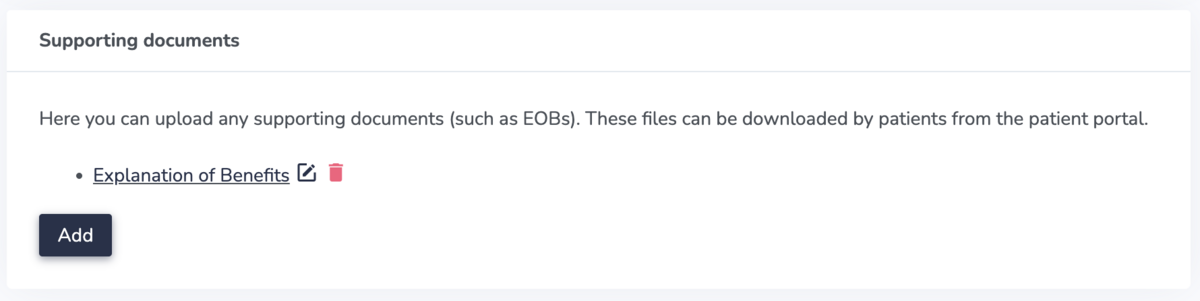
You can upload supporting documents (e.g., EOBs) directly to an invoice.
To add a supporting document, go to the bottom of the invoice page to the Supporting documents section.
These documents are available to patients and can be downloaded from the patient portal.
Changing the payer of an invoice
By default, the payer is the patient.
In some cases, you might want to change the payer of the invoice. A typical use case would be allowing parents to pay for an invoice on behalf of their kids.
You can change the payer if:
- The payer is added as a patient in your account
- No payments have been added to the invoice yet
If all the criteria mentioned above are met, at the top of the invoice page, you will see a "Payer". By default, the payer is the patient for whom the invoice was generated. If you would like to change the payer, click on the Edit icon.

In the pop-up form, search for the payer. You can also choose to display the payer's information on the invoice instead of the patient's information:

Sending an Invoice to a Patient
Once an invoice is created, you can send it to the patient so they can view and pay it.
How patients receive invoices
Depending on your workflow, patients may:
- Receive an email notification (if they have an email on file)
- Access the invoice through their patient portal
What patients can do
From their Embodia account, patients can:
- View invoice details
- See the invoice status (e.g., paid or unpaid)
- Download receipts
- Pay outstanding invoices (if online payments are enabled)
If the invoice is unpaid and online payments are enabled, patients can securely enter their payment information directly from the invoice page.
Related Guides
- Setting up payment methods - Set up Stripe to collect payments online
- Accepting credit card payments - Collect credit card payments from an invoice
- Invoices and statuses - Learn how statuses automatically create invoices
- Managing patients’ cards on file - Store and manage saved payment methods
- Generating a Superbill – Create documentation for insurance reimbursement