
Managing patients' cards on file
Managing patients' cards on file requires the Managing patient invoices permission on your account. You can check with the clinic manager to see if you have such permission.
Automatically saved credit card information
If you have connected one of your payment methods to Stripe to accept credit card payments, your patients' payment information will automatically be added to their file when they or you enter the payment information on Embodia.
Some instances where they are asked to enter their payment information are:
- To complete a purchase, such as a consult invoice or a clinic package invoice. Learn more in the guide Accepting credit card payments.
- To book online, if you require credit card information in online booking. Learn more in the guide Collecting payment information on booking.
- To complete a payment information request in their patient portal. Learn more below.
Adding and editing patient's cards on file
You can manage the patient's card on file from their profile by clicking on Billing > Cards on file:
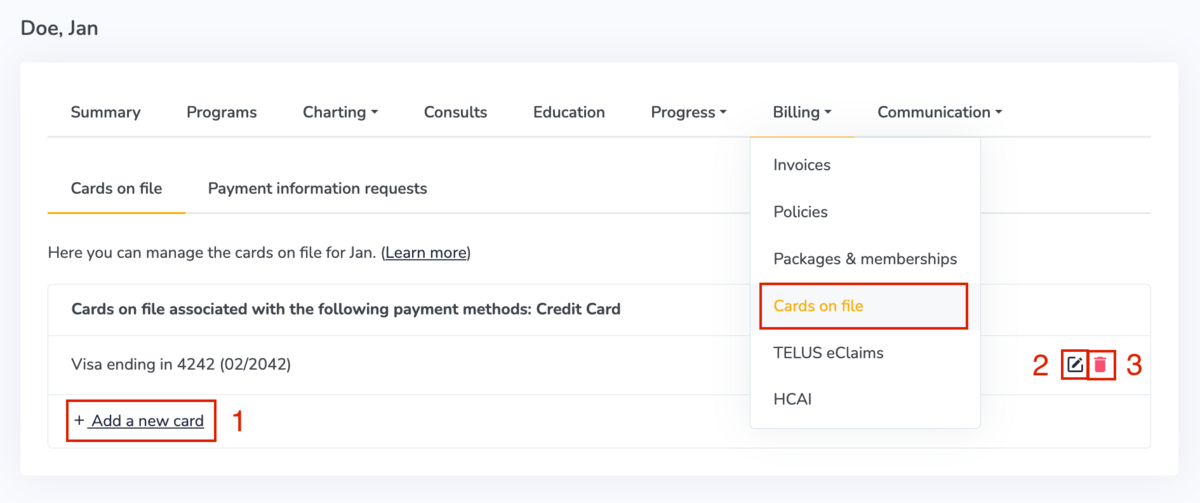
In the Cards on file page, you can:
- Manually add a new card without charging it by clicking on Add a new card (See the image above);
- Edit the internal name of a patient card by selecting the Edit icon and simply entering your desired internal card name (See the image above);
- Remove an existing card from the patient file by clicking on the Delete icon (See the image above).
Sending a payment information request
You can also send a payment information request to the patient asking them to provide their information. This is useful if you do not have online booking enabled and/or have not yet generated an invoice for the patient.
Setting up the form
The first step is for the clinic manager to set up a form that can be sent to the patient.
To do so, the clinic manager can go to Billing > Settings > Payment methods > Request forms, and then click on Add form. There, they can provide an internal name and the body of the form. In the body, it is recommended to include information on why you are asking for the payment information and what this information will be used for.

Ways to send a payment information request
Once a request form is added to the clinic's account, there are two ways to send this form to patients.
- Automatically: Adding the payment info request to your Consult Setting(s) allows it to be automatically sent at the time a consult is booked
- Manually: Sending the payment info request to a patient manually can be done at any point via their patient profile
Automatically sending a payment information request
Once the form has been created, you can have it sent automatically by adding it to your applicable Consult Setting(s).
You can learn more about how to do this in the Requesting payment information at booking section of the Consult Settings guide.
If you have more than one consult setting, you'll want to be sure the Consult Setting(s) containing the form are attached to the applicable services (ex. Initial assessment services). You can set this directly in the default services section of your Consult Setting(s). Learn more about this in the Editing existing Consult Settings section of the Consult settings guide.
Manually sending a payment information request
In the patient profile, under Billing > Cards on file, you can send a payment information request by clicking on the Payment information requests tab, and then on Send new request.

In the popup form, select the request form you previously created and then the payment method.
When you submit the form, an email will be sent to the patient with instructions on how to securely provide their payment information in a PCI compliant manner. You can also customize the email sent to patients.
How patients receive the request
A notification will appear on the patient dashboard indicating that there is a payment information request.
The text preceding the link to securely add their card details is where your custom reason for requesting it will appear.
Here is an example:
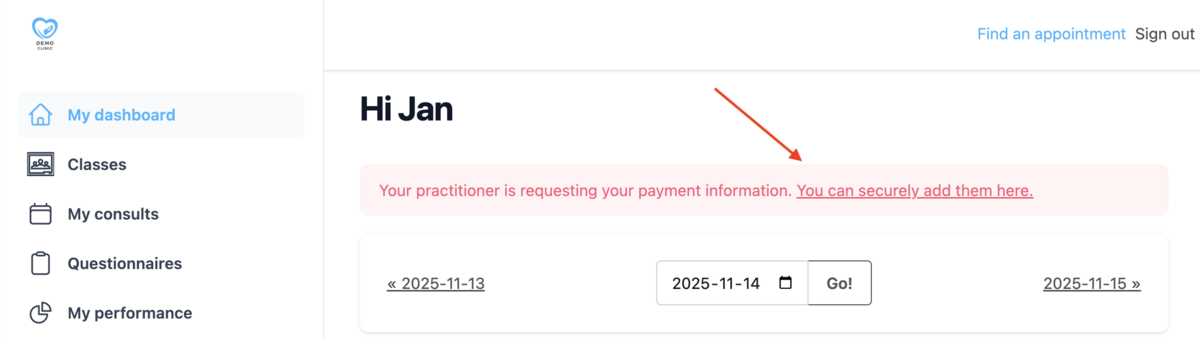
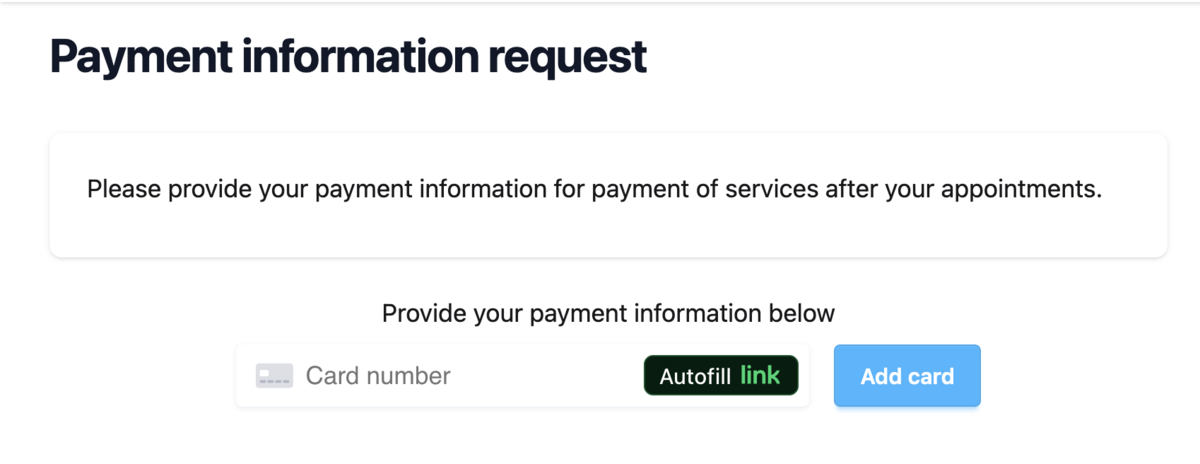
By clicking on the secure link, the patient can complete their payment information:
Related guides
You can learn more in the following guides:
- Accepting credit card payments
- Setting up your Consult Settings
- Collecting payment information on booking
- Setting up your payment methods
- Customize the emails sent to patients